 Suno Downloader AI
How to download Suno songs on iPhone
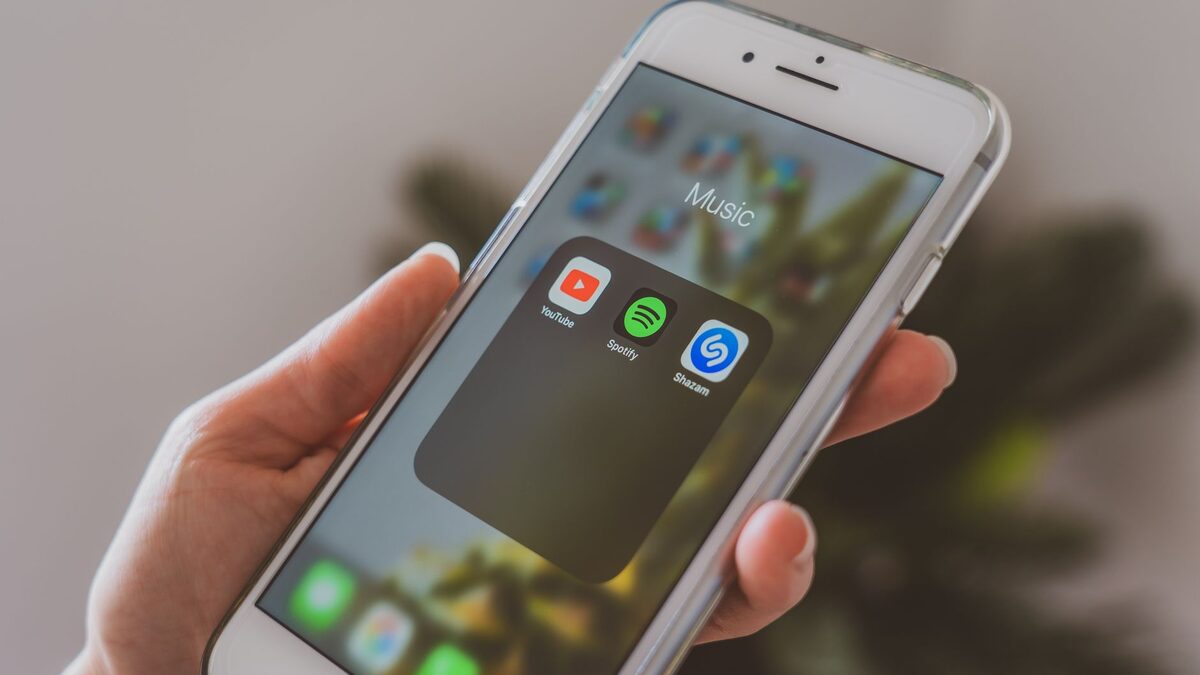
Downloading a Suno track on a computer is easy, but most people want the song on the phone in their pocket. The good news is that you can download Suno songs on iPhone straight from Safari, with no app to install and no subscription. This guide covers the steps, where the file actually lands, how to play it offline, and the iOS quirks that trip people up along the way.
Can you download Suno songs on an iPhone
Yes. Safari on iOS has a built in download manager, so a browser based tool can hand your iPhone a real audio file the same way a Mac would. You do not need an app from the App Store, and you do not need a paid Suno plan to save a track that is public. The only requirement is that the song is shared publicly, since a private track is not reachable from any device. If you can open the link in Safari and hear the song, you can save it.
Download a Suno song on iPhone, step by step
The whole process takes under a minute once you have the link.
- Copy the Suno song's share link, either from the Suno app or by opening the song in Safari and copying the address.
- Open the downloader in Safari and paste the link into the box.
- Choose MP3 for a small file or WAV for the uncompressed master, then tap download.
- When Safari asks, confirm the download. A small download arrow appears near the address bar while it works.
- Tap that arrow to see the finished file, or open the Files app to find it.
That is the full method to save Suno songs to iPhone. Nothing here changes with the model or the length of the track, so the same steps work whether the song is a short loop or a full arrangement.
Where the file goes on your iPhone
By default, Safari saves downloads to the Downloads folder inside the Files app. Open Files, tap Browse, and look under On My iPhone or iCloud Drive for a folder named Downloads, and your track is there. If you would rather keep downloads on the device itself rather than in iCloud, open Settings, tap Safari, then Downloads, and choose On My iPhone. Setting that once saves you hunting for files later, and it keeps the audio available even when you have no signal.
Finding the Suno share link on your phone
Getting the right link is where most snags start, so it is worth doing carefully. In the Suno app, open the song and tap Share, then Copy Link, which gives you the short and reliable /s/ link. If you are in Safari instead, open the song page and copy the address from the bar, which is the longer /song/ URL and works just as well. Either one points the downloader at the exact public track. If you copied a link and nothing loads, open it in a new Safari tab first to confirm the song actually plays for you.
Download MP3 or WAV on iPhone
Both formats download the same way on iOS, and the choice is about what you plan to do with the file. An MP3 is small, plays in every app, and is the right pick for listening on the go, so it is what most people want on a phone. A WAV is the uncompressed master, which matters if you will move the track to a computer later and edit it, but it is a much larger file to keep on a phone. For pure listening, take the MP3 and leave the WAV for your desktop.
How to play the downloaded song
Once the file is in Files, you can tap it to play straight away, which is enough for a quick listen. To build a proper offline library, a free media player app such as VLC or Documents reads files from the Files app and gives you a real music interface with playlists. The stock Apple Music app is the one exception here, since it does not easily import a loose audio file on iOS without syncing through a computer, so a lightweight player from the App Store is the simpler route for songs you download on the phone.
Getting a Suno song into Apple Music
People often want the download to show up in the Apple Music app next to their other songs, and this is the one thing iOS makes awkward. The Music app does not let you import a loose file directly on the phone. The reliable route is to add the track to your library on a computer, in the Music app on a Mac or iTunes on Windows, then let it sync to your iPhone. If that is more than you want to bother with, a free player like VLC reads the file straight from Files and gives you playlists without any syncing, which is why most people who download on the phone use a player app rather than fighting Apple Music.
Download from your own Suno account on iPhone
If the track is your own, you also have the official export. In the Suno app, open the song, tap the three dot menu, and choose Download, then pick the format your plan offers. This saves the file to your iPhone the same way, landing in Files. The official route is the one to use for your own commercial tracks on a paid plan, while the link method is quicker for saving a public song or grabbing a file without digging through the app.
Add the downloader to your home screen
If you save Suno tracks often, turn the tool into something that behaves like an app. Open it in Safari, tap the Share icon, then Add to Home Screen. It now opens full screen from your home page with no address bar, so pasting a link and downloading takes two taps. This costs nothing and installs nothing, since it is just a shortcut, but it removes the friction of finding the site each time.
Downloading more than one song
Safari handles downloads one at a time cleanly, so the simplest approach for a batch is to work through your links in order. Paste the first, download it, wait for the arrow to finish, then paste the next. The Files app keeps them together in the Downloads folder, sorted by time, which makes a whole session easy to find later. If you rename each file to the track title as it arrives, while you still remember which is which, you save yourself a sorting job when the folder fills up.
Automate it with the Shortcuts app
If you download tracks often and like tinkering, the built in Shortcuts app can shave off a few taps. A simple shortcut can take a link from your clipboard, open the downloader with it ready, and sit in your share sheet so you trigger it straight from the Suno app. This is optional and takes a few minutes to set up, so it is only worth it for regular use, but once it is in place, saving a song becomes a single tap from wherever you found the link. For most people the home screen shortcut above is enough.
Troubleshooting on iPhone
Most problems on iOS come down to a few causes, and each has a simple fix.
- The download seems to vanish. Check the download arrow next to the Safari address bar, then look in Files under Downloads. iOS often saves quietly rather than announcing it.
- Safari asks what to do and you tapped the wrong option. Try again and choose Download, and confirm your download location under Settings, Safari, Downloads.
- Nothing loads at all. The song is probably private. Open the link in a fresh tab, and if it will not play there, it is not public yet.
- The file will not play in Apple Music. Use the Files app or a player like VLC instead, since Apple Music does not import loose files easily on iOS.
- The WAV takes a while. That is normal, because the lossless file is built when you request it, so give it a few extra seconds.
Sharing a downloaded song from your iPhone
Once a track is in the Files app, sharing it works like any other file. Tap and hold the file, choose Share, and you get the usual options: AirDrop it to a nearby Mac or iPhone, send it in Messages, or drop it into a cloud folder. An MP3 is the format to send here, since it is small enough to go over Messages or email without trouble, while a WAV is often too large for those. This is the easy way to get a song you made off your phone and to a friend or a collaborator as a real file rather than a link they cannot keep.
Moving a WAV to your computer
If you grabbed the WAV master on your phone but the real editing happens on a desktop, there are a few ways across. AirDrop is quickest to a Mac, landing the file in Downloads in seconds. To a Windows PC, save the file to a cloud folder such as iCloud Drive or Google Drive from the share sheet, then open it on the computer. A cable and the Files access in Finder also works. Whichever route, keep the WAV rather than a re-compressed copy, since the point of the master is that it has not lost anything yet.
Why not just screen record the song
A common shortcut people try on a phone is the screen recorder, capturing the audio while the song plays. It works, but the result is a worse file than a real download. A screen recording is a video you then have to convert, it can pick up a notification sound or a stray tap, and the audio is re-compressed rather than the original render. Downloading the actual MP3 or WAV gives you the clean file Suno made, at full quality, with none of that cleanup. The recorder is a last resort for something you cannot download, not a substitute for saving the real thing.
Keeping an eye on storage
Audio files are small next to photos and video, but a habit of saving every take adds up, especially with WAV masters. If space is tight, keep MP3s on the phone for listening and move the large WAV files to a computer or a cloud folder, then delete the local copy. The Files app lets you check and clear the Downloads folder in a few taps, so a quick tidy now and then keeps your saved songs from crowding out everything else.
Listening to your Suno songs offline
The main reason to download on a phone is to have the music without a connection. Once the file sits in Files or a player app, it plays on a plane, on the subway, or anywhere with no signal, and it does not count against your data. Saving the MP3 rather than streaming also means the song is yours to keep even if it is later removed from Suno, which matters for a track you made and want to hold on to. A quick download now saves a favourite from disappearing later.
The fastest way to save Suno songs on iPhone
All of this runs through one tool. The free Suno downloader works in Safari on any iPhone, takes a Suno link, and returns a clean MP3 or WAV with no account and no daily cap. Paste, pick a format, and the file lands in your Files app. It talks only to Suno's own servers and keeps no record of the links you paste, so nothing about your session sticks around.
For the desktop steps, the official export, and the video option, our full guide on how to download Suno songs covers every route. If you have not made the track yet, our guide on how to use Suno AI walks through prompts and modes. Save the song you like, add it to a player, and take it with you.
Save a Suno track to your iPhone
Open in Safari, paste the link, choose MP3 or WAV, download. Free, no app.
Open the free downloader