 Suno Downloader AI
Suno cover art: make album art for your AI songs
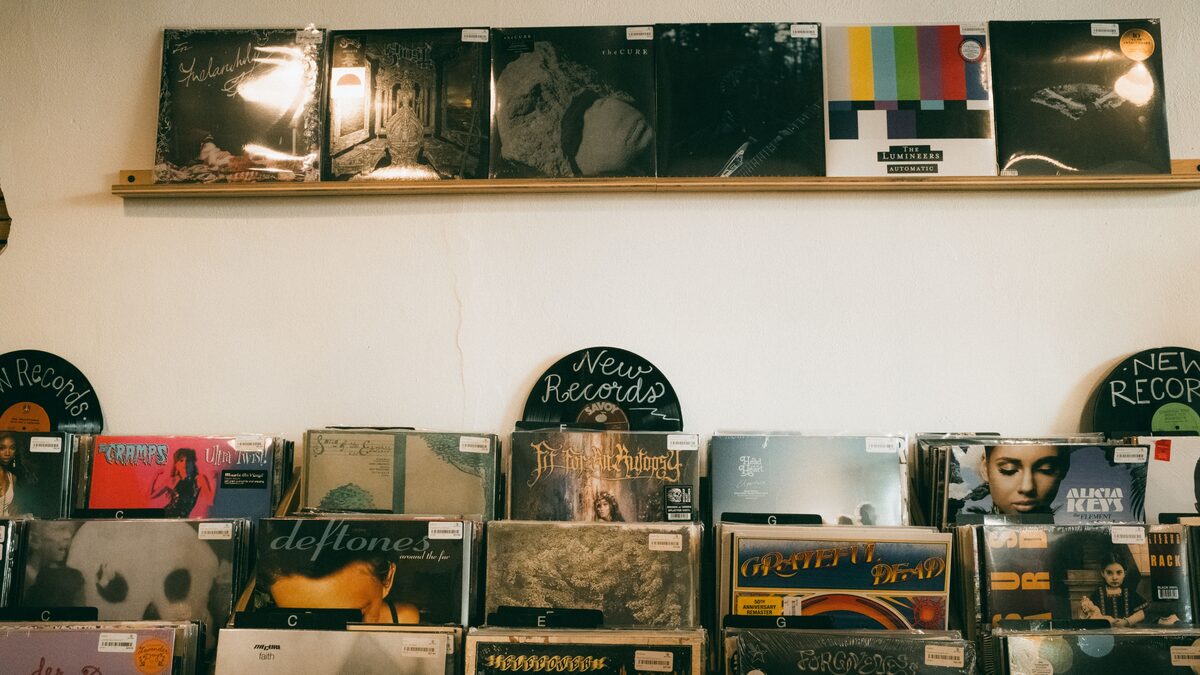
A song needs a face. Whether you are uploading to streaming, posting a music video, or just organising your tracks, cover art is the image people see first, and a good one makes your AI song look like a real release. Suno gives every track an auto generated cover, but for anything you care about, making your own is worth the few minutes. This guide covers Suno cover art from every angle: the size you need, the tools to make it, tips for a strong image, and how to pair it with your downloaded track.
Why cover art matters
Cover art is the first impression your music makes, often before a single note plays. On streaming services and social feeds, the thumbnail is what makes someone stop and click, so a striking image directly affects whether your song gets heard. It also signals care: a track with a thoughtful cover reads as a real release, while a default or blank image reads as a throwaway. For anyone building a catalogue or a brand, consistent, quality cover art ties your releases together. Even if the music is the point, the picture is what opens the door, which is why it deserves more than an afterthought.
The Suno auto generated cover
Suno creates a cover image for each song automatically, and for casual use it is often fine. If you are just making music for yourself or sharing a quick link, the generated art does the job with no extra effort. Where it falls short is anything public and permanent, since the auto cover is generic and shared in style with countless other tracks. For a release you want to stand out, or a channel with a consistent look, making your own gives you control the auto cover cannot. Think of the generated image as a placeholder that is good enough until the song matters, at which point custom art pays off.
What size should cover art be
Size matters most when you distribute, so get it right up front.
- Streaming services generally want a square image, commonly 3000 by 3000 pixels.
- Square, one by one, is the standard shape for album and single art everywhere.
- Use a high resolution so it stays sharp on large screens and small thumbnails alike.
- Save as a standard format like JPG or PNG at good quality.
Making your art square and high resolution from the start means it works for streaming, video, and social without reworking.
Tools to make cover art
You have several easy routes, and none require design skills. An AI image generator can create original artwork from a text description, which pairs naturally with an AI song, so you might prompt for an image that matches the mood of your track. A design tool like a free graphics app lets you combine a photo or a generated image with your title and artist name on a template. You can also start from a royalty free photo and add text. Pick whichever fits how you work, since the goal is the same: a square, high resolution image that captures your song and carries your title.
Use an AI image generator for the art
An AI image generator is a natural match for an AI song, since both start from a text description. Describe the mood, setting, and style you want, the same way you would prompt for music, and you get original artwork with no stock photo to license. Try prompts that name a scene and a feeling, a neon lit city at night, moody and cinematic, or a sunlit meadow, warm and dreamy, then pick the image that fits your track. Generate a few options, since the first is rarely the best, exactly as with music. The result is a unique cover that belongs only to your song, made in the same few minutes it took to write it.
Cover art for YouTube and video
If you are posting your song as a video rather than to streaming, the art still matters, just in a different shape. A square cover works as the still image behind an audio upload, and it also makes a strong video thumbnail. For a music video, you can use the cover as the background with your title over it, which is the simplest kind of music video to make. The same image can serve your streaming release and your video upload, keeping everything consistent. Our guide on turning a Suno song into an MP4 covers building that simple cover art video step by step.
Make art that matches the music
The best cover art reflects the song, so start from the feeling of the track. A moody ballad wants dark, atmospheric imagery, an upbeat pop song wants something bright and energetic, a lo-fi track suits a calm, warm scene. If you use an AI image generator, describe the mood and setting the same way you describe a music prompt, and you will get artwork that feels connected to the sound. Matching the image to the music makes the whole release feel intentional, and it helps the right listeners recognise what they are getting before they press play. A cover that fits the song does quiet but real work.
Add your title and name
Text turns an image into a cover. Add the song or release title and your artist name, so anyone who sees the art knows what it is and who made it. Keep the text readable, with a clear font and enough contrast against the background, since it needs to work at thumbnail size where fine detail disappears. Place the text where it does not fight the focal point of the image. You do not need elaborate typography, just a clean title and name that stay legible when the cover is shrunk to a small square in a feed. That small touch is what separates finished cover art from a bare picture.
Pair the art with your track
Cover art and audio come together at the point of release, so you need both as files. Once your image is ready, you pair it with your song when you upload to a platform or build a music video. The free Suno downloader turns your Suno link into a clean MP3 or WAV with no account, so you have the audio in hand to match with your art. Take the WAV if you are distributing to streaming, where quality matters most. With a square cover and a clean audio file, your AI song is ready to look and sound like a proper release wherever you put it.
Got your cover ready?
Paste your Suno link, choose MP3 or WAV, download. Free, no sign up.
Open the free downloaderKeep a consistent look
If you are releasing more than one track, a consistent visual style is worth planning. Using a shared palette, font, or layout across your covers makes your releases recognisable as yours, the same way a consistent sound builds a musical identity. Listeners start to spot your work in a feed by its look before they read the title. This does not mean every cover must be identical, just that they should feel like a family. Because you make the art yourself, you can set a simple style and reuse it, which keeps each release quick to produce and your catalogue looking coherent and professional.
Mind the rights on your cover art
Cover art has its own rights to think about, separate from the music. If you use an AI image generator, check its terms for how you can use the output, especially for a commercial release, just as you would with your music tool. If you build the cover from a photo, make sure it is one you are allowed to use, such as your own or a properly licensed royalty free image, rather than a picture pulled from a search. And do not use a famous logo, a real brand, or someone's photo without permission. Keeping the art as clean, rights wise, as the music means your whole release stays yours to distribute.
Common cover art mistakes
- Making the image too small or low resolution, so it looks blurry at full size.
- Using a non square shape, which gets cropped awkwardly on streaming.
- Text that is unreadable at thumbnail size, where most people see it.
- Busy artwork that has no clear focal point and looks cluttered when shrunk.
- Using an image or logo you do not have the rights to.
Keep the original high resolution file
Once you have a cover you like, save the full resolution original, not just a small copy. You will need the large version for streaming, which asks for a big square image, and you may want to resize it for different platforms later. Keeping the high resolution master means you can make any smaller version you need without losing quality, while starting from a small file and enlarging it looks bad. Store the cover alongside your audio file so the song and its art stay together. A little organisation here saves you remaking artwork every time a platform wants a different size.