 Suno Downloader AI
Suno to MP4: turn your song into a video
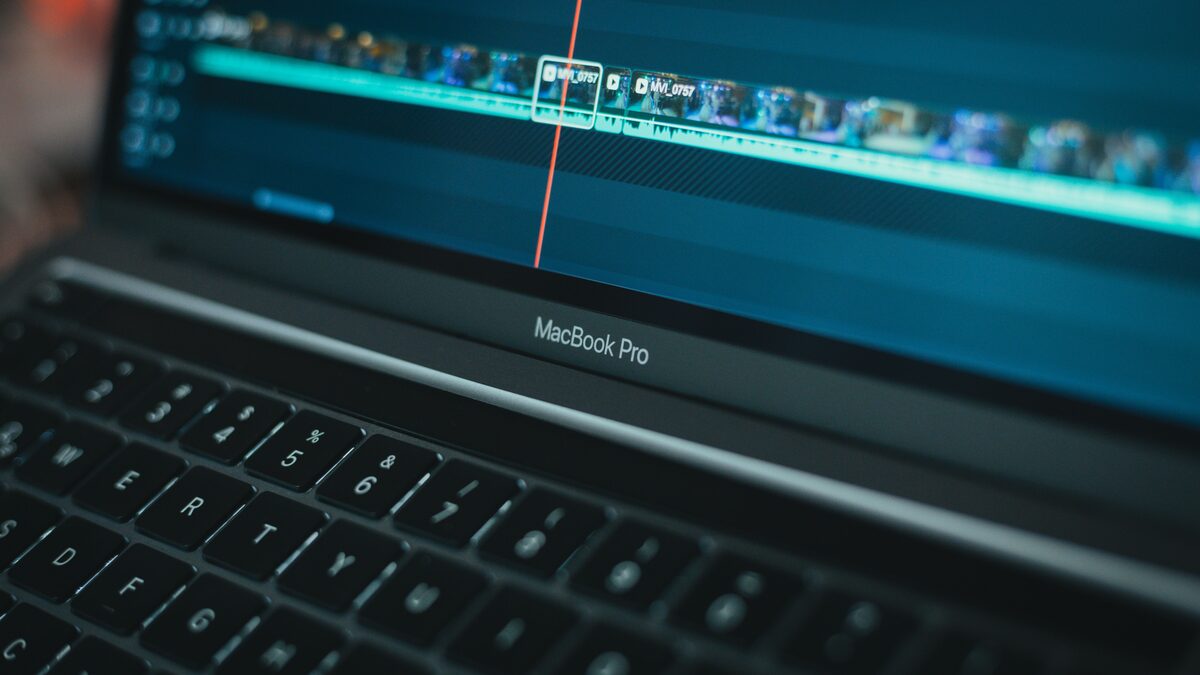
You made a track in Suno and now you want it as an MP4, usually because the place you want to post it, YouTube most of all, needs a video rather than an audio file. The good news is that turning a song into a video is quick, and you do not need editing skills to do it. This guide explains why Suno gives you audio rather than video, and walks through the simplest ways to turn a Suno song into an MP4, from a single cover image to a moving waveform, ready to upload anywhere.
Why Suno gives you audio, not a video
Suno makes music, so what it produces is an audio track, not a video file. An MP4 is a video container, which means it needs something visual to show while the song plays, even if that is just a still image. There is no way to export an MP4 straight from a song, because the video part does not exist yet, you create it. That is why the process is always two steps: first get the audio out of Suno, then wrap it in a simple visual and export as MP4. Once you see it that way, the whole thing becomes straightforward.
Step one: get the audio out of Suno
Everything starts with the sound file. Before you can make a video, you need the song as an audio file on your device, since your editor will import that as the soundtrack. The free Suno downloader turns your Suno link into a clean MP3 or WAV with no account, so you have the track in hand in seconds. Use the MP3 for a quick social video, or the WAV if you want the highest quality audio in a release you care about. With the file saved, you are ready to add a visual and export the MP4.
Start with the audio
Paste your Suno link, choose MP3 or WAV, download. Free, no sign up.
Open the free downloaderWhat you need to make an MP4
Very little, and most of it is free. You need the audio file, a visual of some kind, and a tool that can combine them and export MP4. The visual can be as simple as a single cover image, or as involved as a slideshow or moving waveform, depending on how much effort you want to put in. The tool can be a phone video app, a free desktop editor, or an online maker. None of this requires paid software or real editing experience. If you can add a photo and an audio clip to a timeline, you can produce a finished MP4.
The simplest method: one image plus the song
For most uses, a single still image behind the song is all you need, and it is the fastest route.
- Open a video editor, whether on your phone or computer.
- Add your cover image and stretch it to the full length of the song.
- Import the downloaded audio and place it on the timeline.
- Set the canvas to the shape you need, wide for YouTube or tall for shorts.
- Export as MP4.
That gives you a clean lyric card or cover art video in a couple of minutes, which is exactly what most music uploads on YouTube actually are.
A step up: a moving waveform or visualizer
If a static image feels too plain, a moving waveform adds life without much extra work. Many editors and online tools can generate an audio visualizer, a bar or wave that moves with the music, which you lay over your background image. It signals at a glance that the video is about the music, and it holds attention better than a still frame. Some free tools are built specifically to turn audio into a visualizer video, so you upload the song, pick a style, and download the MP4. This is a nice middle ground between a plain image and full footage, and it suits music uploads well.
Going further: footage or a slideshow
When you want the video to carry its own weight, use moving visuals. A slideshow of images, some stock footage, or your own clips cut to the song turns the upload into something people watch rather than just listen to. This takes more time, but it pays off for a proper release or a music video style piece. Keep the edits simple and let the song lead, cutting on the beat where it feels natural. You do not need fancy effects, just visuals that match the mood of the track. For a serious release, this extra effort is what makes the video feel finished.
Free tools to turn a song into a video
You do not need to buy anything to make a music video. On desktop, free editors handle an image plus audio easily, and they export MP4 without a watermark in most cases. On mobile, the built in video apps and free editing apps do the same job from your phone. Online, a number of audio visualizer makers let you upload a song, pick a background and a wave style, and download the finished MP4 in the browser. Any of these covers the simple cover art or waveform video that most music uploads use. Pick whichever you already have or find easiest, since the result is the same MP4 either way.
Make an MP4 on your phone
The whole process works on a phone, which is handy if that is where you make and post content. Download the song to your phone, open a free video app, add a photo as the background and the audio as the soundtrack, set the shape for where you are posting, and export. The phone then holds a finished MP4 you can upload straight to YouTube or drop into a social app. For getting the audio onto your phone in the first place, our guides to saving tracks on iPhone and Android walk through that step. From there, making the video is just a few taps.
Match the video length to the song
A music video usually runs the length of the song, and getting that right avoids awkward gaps. When you add a still image, stretch it to cover the full audio so the picture stays on screen from the first note to the last. If your song is short and you want a longer video, you can loop a section of the visual or repeat the track, though a video that matches the song length one to one is the cleanest. For a short social clip, trim both the audio and the video to the exact segment you want, starting on the strongest part of the song so it grabs attention immediately.
Set the right shape for the platform
The aspect ratio decides where the video fits, so set it before you export.
- Wide, sixteen by nine, for YouTube and standard video.
- Tall, nine by sixteen, for YouTube Shorts, Reels, and TikTok.
- Square, one by one, as a safe option for feed posts.
Making the canvas match the destination avoids ugly black bars and awkward cropping, and it takes one setting to get right.
Add a title and cover art
A few small touches make the video look intentional. Put the song title and your name on screen, so anyone who sees a frame knows what they are hearing and who made it. Use a strong cover image, ideally something that fits the mood of the track, since it becomes the thumbnail and the first impression. If you are building a channel, keep the layout consistent across videos so they read as a series. None of this takes long, and it is the difference between a video that looks like a placeholder and one that looks like a release you are proud of.
Upload your MP4
With the MP4 exported, uploading is the easy part. For YouTube, a wide video with a clear title and thumbnail is ready to go, and because the music is your own AI track, you avoid the copyright claims a licensed song would trigger. For shorts and social, the tall version drops straight into the app. If you plan to put the music on streaming services rather than just video platforms, that is a different path through a distributor, which our guide on how to upload Suno songs to Spotify covers. For video platforms, though, your MP4 is all you need.
Tips to make the video look good
A handful of small choices lift a simple music video above a bare placeholder.
- Use a high resolution cover image so it stays sharp at full screen.
- Keep text readable, with a clear font and enough contrast against the background.
- Pick a background that matches the mood of the song, not a random photo.
- Export at a standard resolution, such as 1080p, so it looks clean everywhere.
- Keep a consistent look across videos if you are building a channel.
None of these take real effort, and together they make the upload feel deliberate rather than thrown together.
Keep the audio quality high
The picture gets the attention, but the sound is what people came for, so do not let it degrade. Start from a good audio file, the WAV if quality matters, and let your editor keep it at a high bitrate on export rather than compressing it hard. Video platforms re encode what you upload, so giving them clean audio to begin with means the final result sounds its best. Avoid exporting at a very low quality setting to save file size, since the difference is audible on music. A sharp image with muddy sound undercuts the whole point, so treat the audio as the priority it is.